Publish an Event
Creating an event does not make it public. Publishing does, and publishing has requirements — an event that reaches people with no picture, no organiser and no address is worse than one that waits a day.
Publish now
- Open Manage, then your event.
- Go to Settings. The Visibility block is at the top of the Main tab.
- Click Publish Event.
Publication is immediate. The badge turns to Published and the event appears in search, in recommendations and in the feeds of people who follow the promoter or the venue.
If Publish Event is greyed out, the event is missing something. The block names what, under the button, and the next section explains the rule.
Schedule a publication for later
- In the Visibility block, click Schedule.
- In the Schedule publication window, fill in Date, Hour and Minute. The window names the timezone those times are read in: the event's own, not yours.
- Click Schedule publication.
The badge becomes Scheduled for the moment you picked, and the event goes public on its own at that moment.
To cancel, click Cancel schedule — the same button, relabelled once a schedule is set. Cancelling always works, even on an event that is missing something.
Scheduling is not a way around the requirements. They are checked when you schedule, with the same message, and again at the moment of publication.
What an event needs
Three things, all of which must be true at the moment it goes public:
| Requirement | Why |
|---|---|
| A cover image | It is the whole visual of the event card and every share preview |
| At least one promoter | Someone has to be publicly responsible for the event |
| At least one venue | An event nobody can locate cannot be attended |
If something is missing, Publish Event and Schedule are both disabled and the line under them reads Missing to publish, naming everything missing at once rather than one refusal at a time.
It is a floor of one, not a freeze. An event with three promoters can lose two of them without anything being blocked — only losing the last one blocks it.
When a scheduled publication does not happen
The three requirements are checked again at the moment of publication. If you schedule an event and then remove its cover, its last promoter or its last venue, the publication does not happen.
It is not silently cancelled either. The badge becomes Publication missed, and the block tells you the event was scheduled, that it did not go out, and which of these two is true:
Something is missing. The date passed while a requirement was not met. The schedule stays in place and is re-checked every minute, so adding what is named and saving is all it takes: the event then publishes on its own, with no manual step.
Everything is in place. The requirements are met and publication is running late; it should happen within a minute. If it does not, publish manually — nothing is broken on your side.
Either way, Cancel schedule in the same block clears the schedule.
Unpublishing
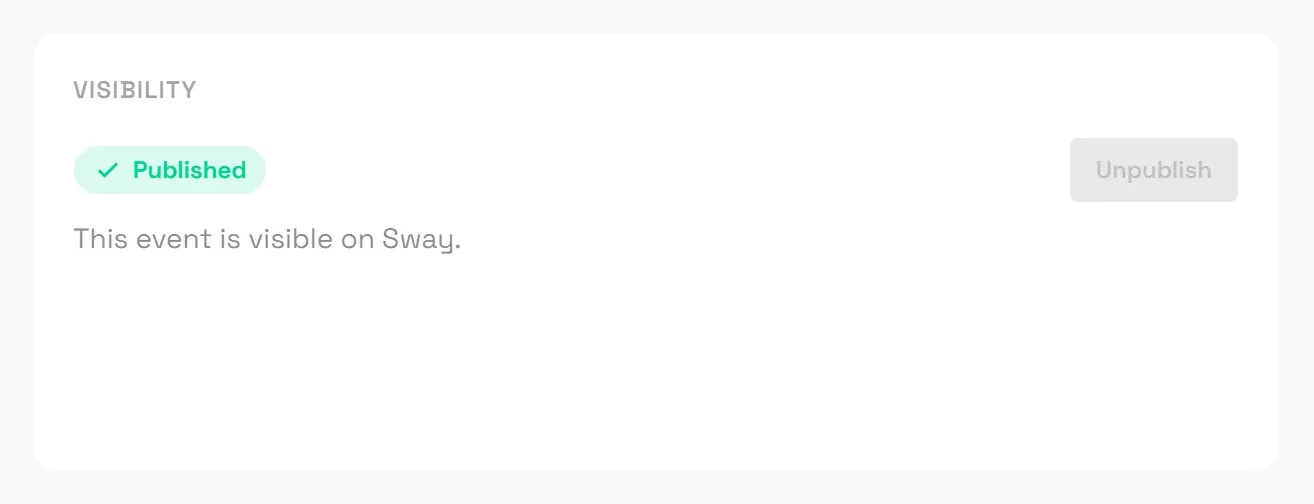
On a published event the same button reads Unpublish, and it takes the event back out of search, recommendations and feeds.
Unpublishing is never blocked by the three requirements. An event published long before these rules existed stays editable and stays publishable — the rules are there to stop new empty pages going out, not to strand pages already out.
From the mobile app
Publishing from your phone follows the same cover-image rule: see Create an event (mobile app). Scheduling is web only.
DJ Contest
Run an anonymised DJ contest on one of your events from the Sway web app, from submissions and shortlist to public voting and published results.
AI Assistant
Ask the Sway assistant about an event, train it on what Sway cannot measure, import a mailbox, and share it with the people working the door.